

Install on Mobile
Synolink Inbox runs in the browser, but you can add it to your phone’s home screen. Once added, it opens full-screen without the browser’s address bar, just like a native app. No app store download is needed.
The address to add is https://inbox.synolink.ai.
Android
Section titled “Android”Use Chrome to install.
-
Open
https://inbox.synolink.aiin Chrome. -
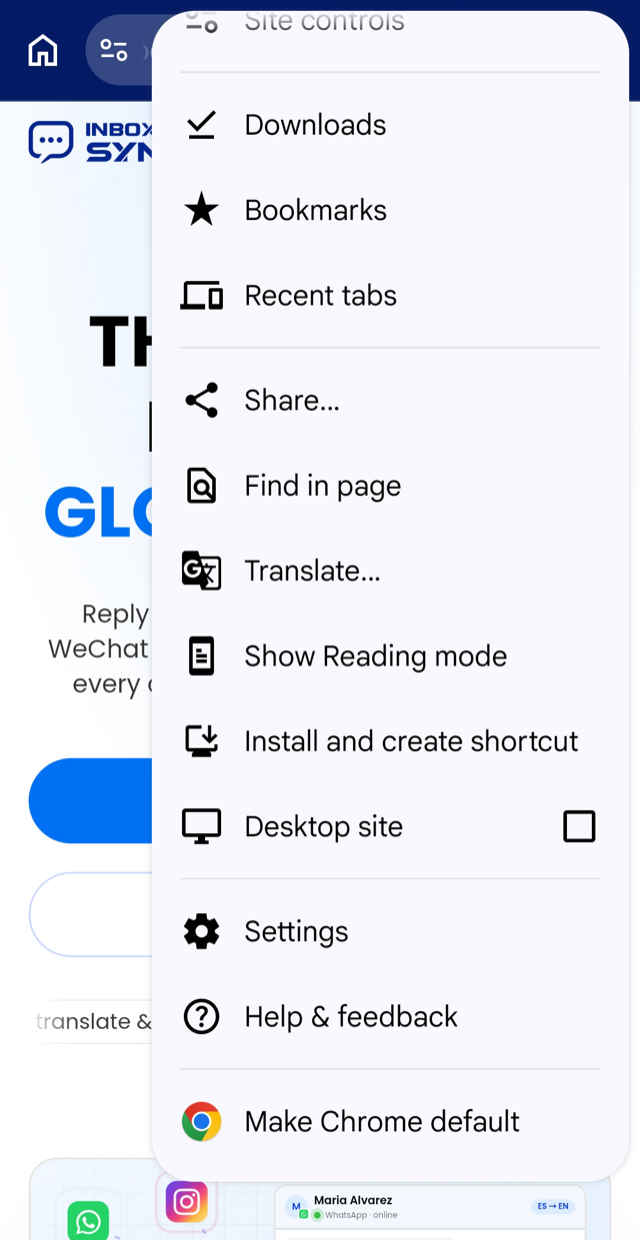
Tap the ⋮ menu at the top right, then tap Install and create shortcut.
-
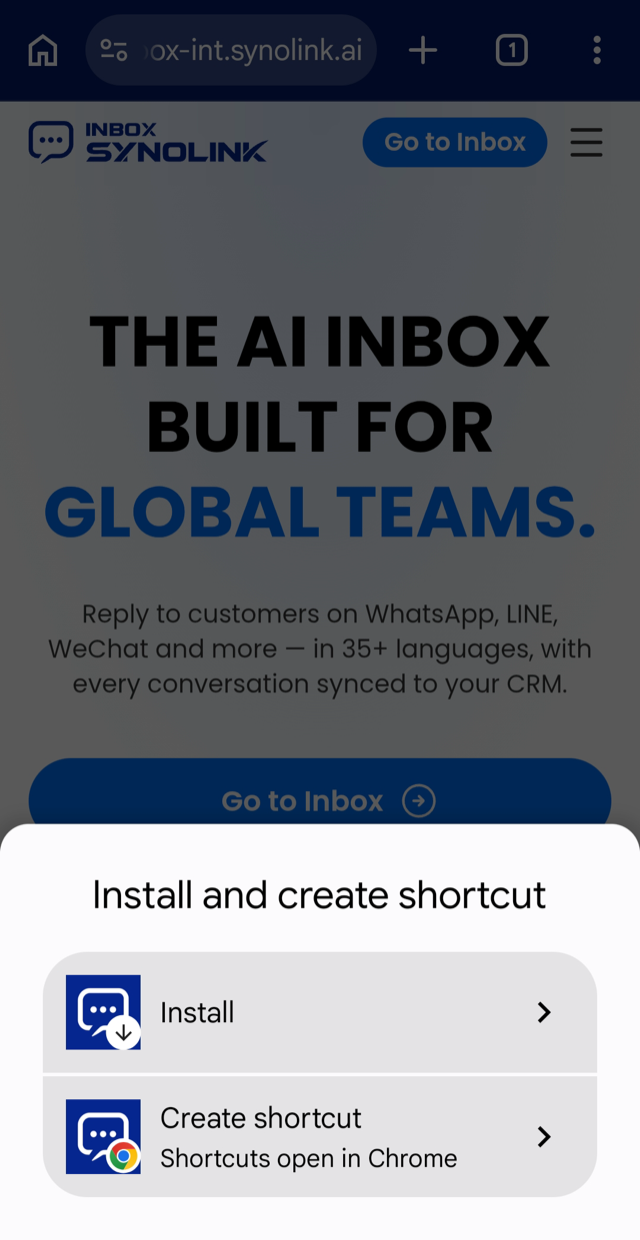
Choose Install. Create shortcut only adds a link that opens in a Chrome tab.
-
Tap Install in the Install app dialog.
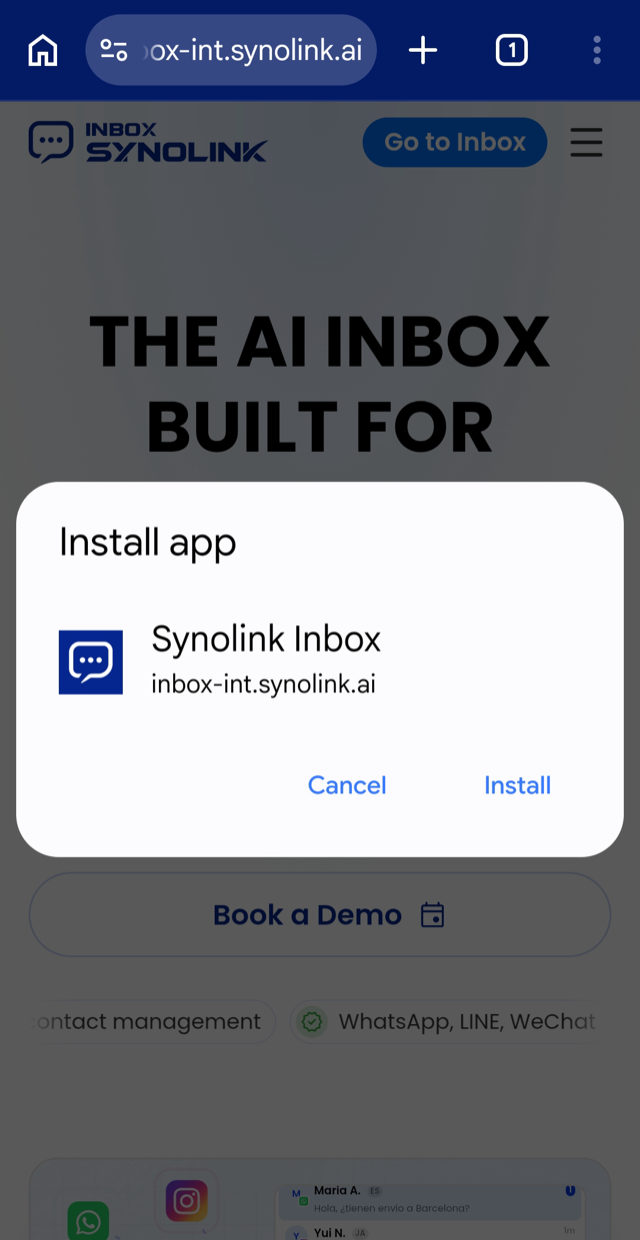
An Inbox icon appears on your home screen.
On older Chrome versions, the menu item is labeled Add to Home screen or Install app.
iPhone and iPad
Section titled “iPhone and iPad”Use Safari to install. Other browsers on iOS cannot add web apps to the home screen.
-
Open
https://inbox.synolink.aiin Safari. -
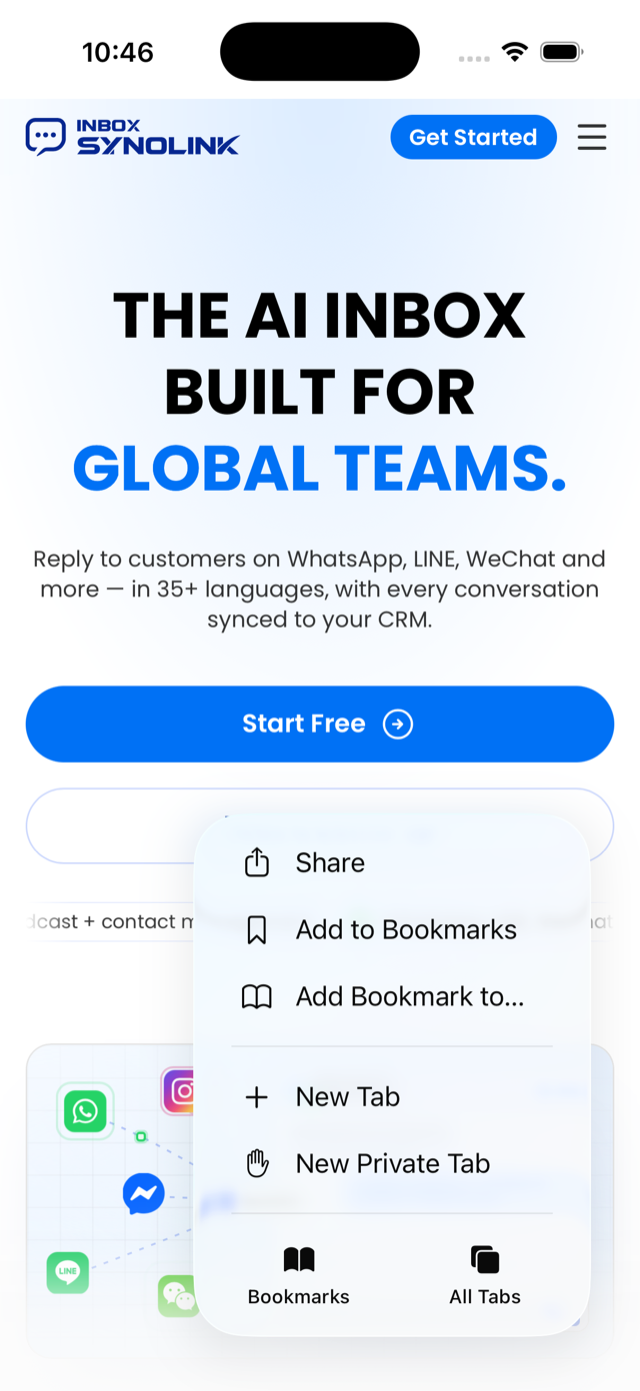
Tap the ⋯ button at the bottom right, then tap Share.
-
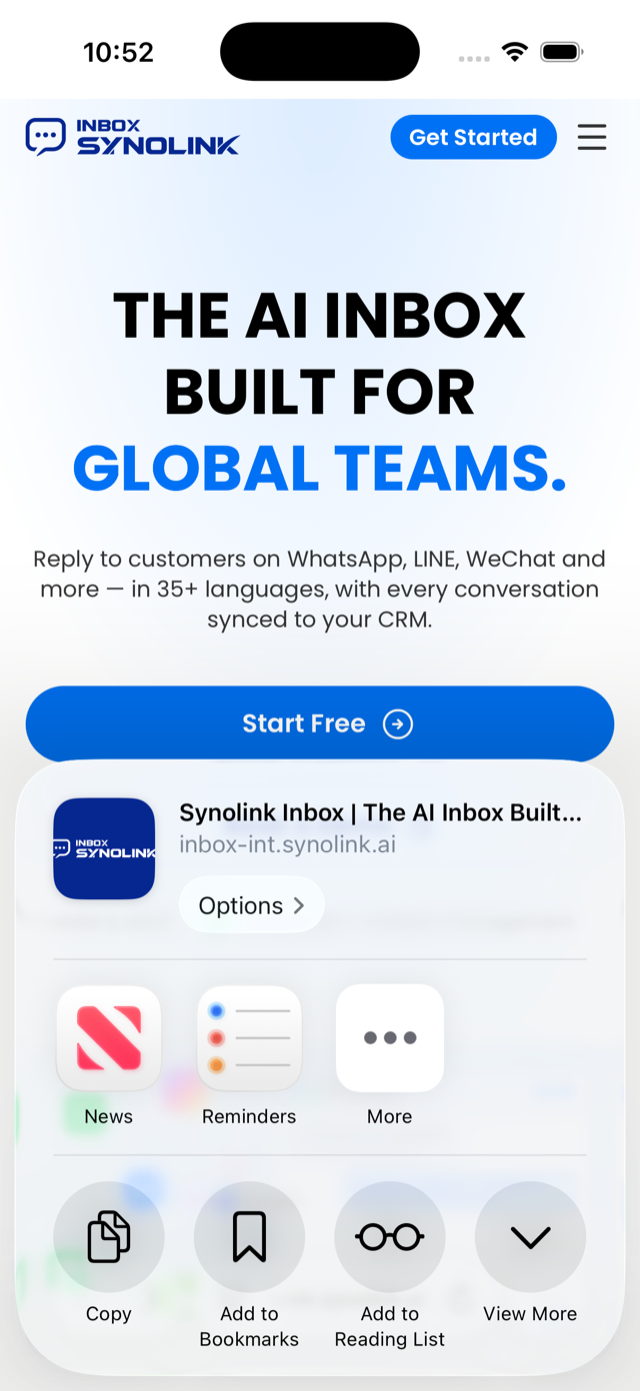
In the share sheet, tap View More.
-
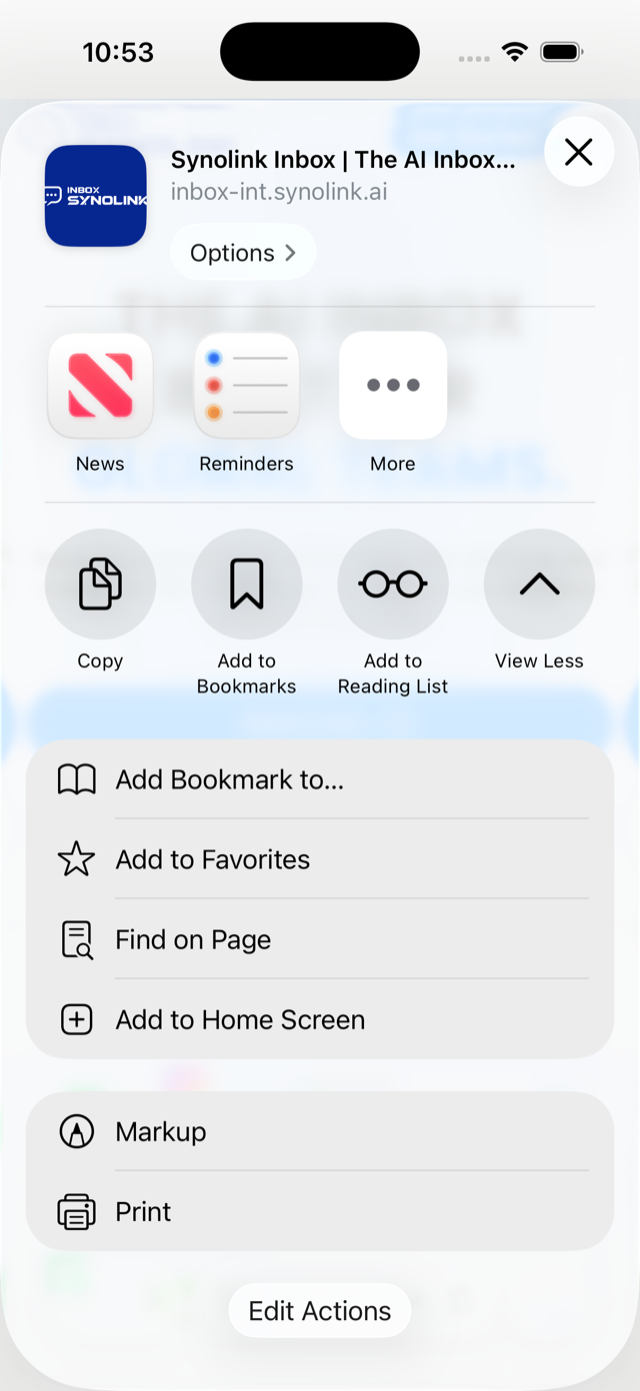
Tap Add to Home Screen.
-
Keep Open as Web App turned on and tap Add.
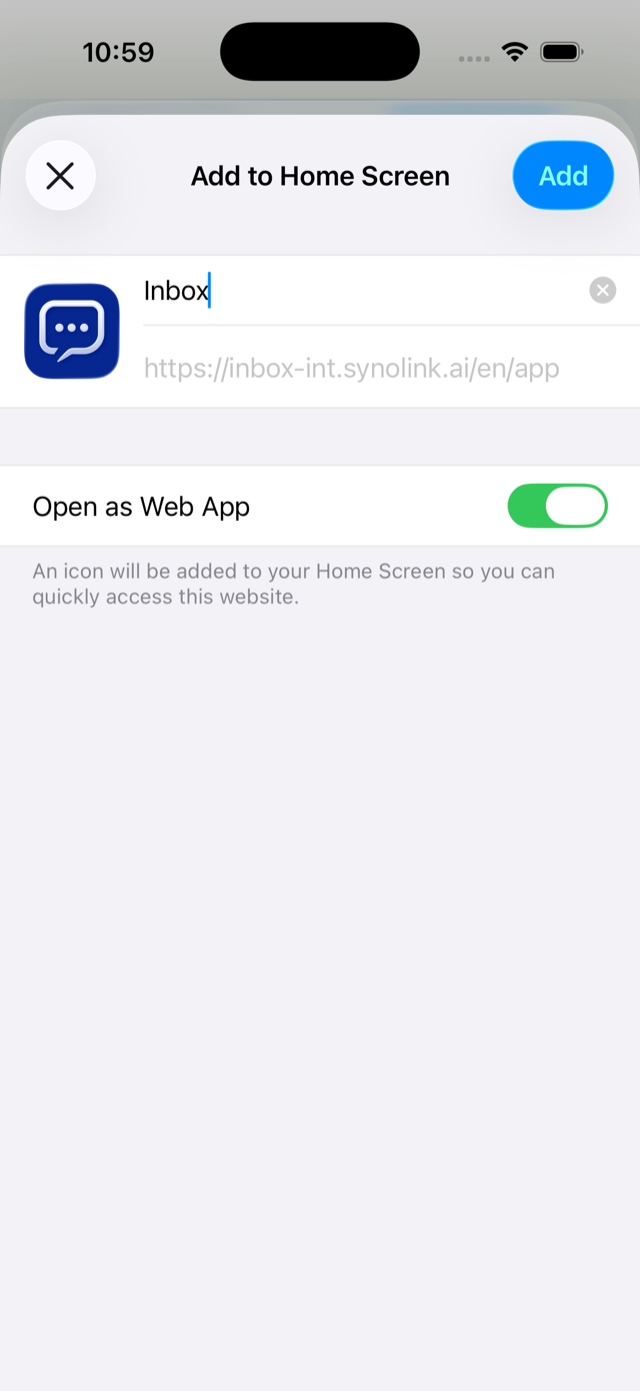
An Inbox icon appears on your home screen.
On older iOS versions, the Share button is in the bottom toolbar and Add to Home Screen appears directly in the share sheet without tapping View More.
Removing the app
Section titled “Removing the app”- Android: Press and hold the icon, then tap Uninstall.
- iPhone and iPad: Press and hold the icon, then tap Delete Bookmark.
Removing the icon does not delete your account or any data.